

User guide#
Sending files#
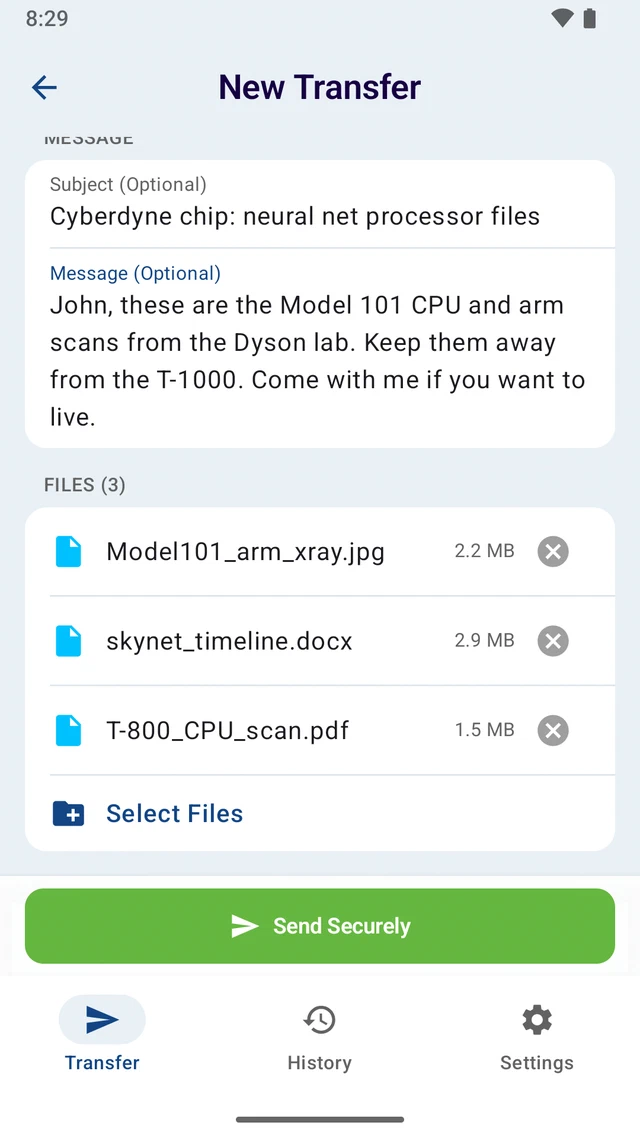
- On the Transfer tab tap Send Files for documents, or Send Photos & Videos for your photo library. The picker opens right away; you can add more files later with Select Files / Select Media at the bottom of the form.
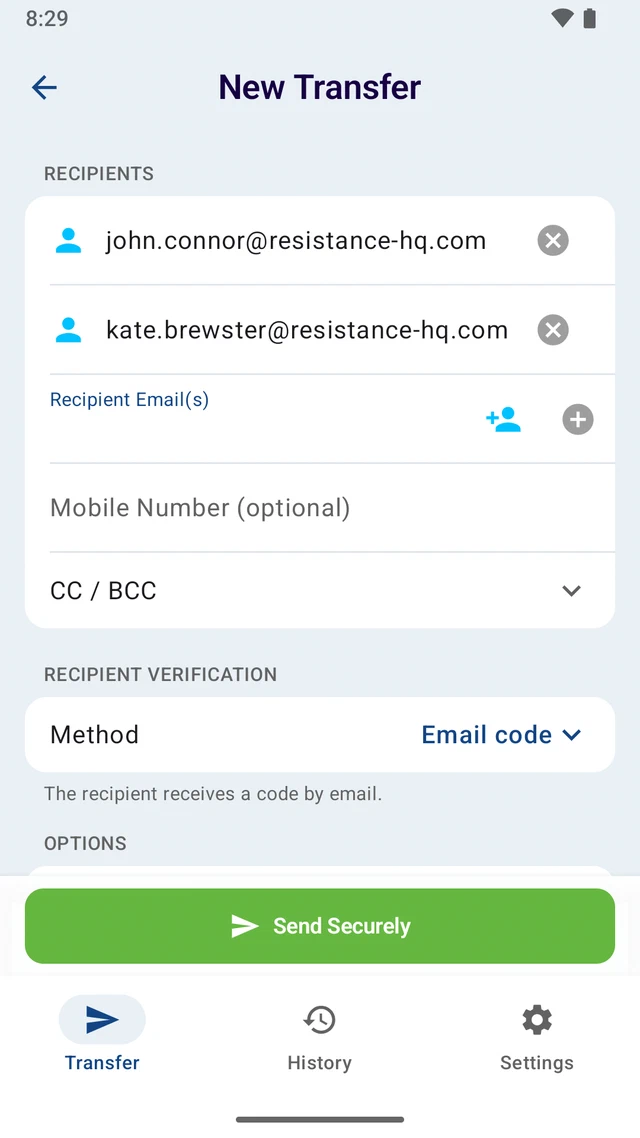
- Add recipients (see below).
- Choose the verification method.
- Optionally set a subject, a message, the number of downloads and the retention period.
- Tap Send Securely. The button stays in view while you fill in the form, also above the keyboard.
While the transfer uploads, the app shows the progress and keeps the screen on. If you switch to another app or lock the phone, the upload continues in the background and a notification shows its progress. Tap Cancel Upload to stop.
The first time you send, Android asks whether FileCap may show notifications. The upload works either way.
After a successful upload the app shows the transfer ID and, for password-protected transfers, the password.
Files, photos and videos#
The app copies the files you choose before it sends them, so they stay available while the upload runs. For large videos this takes a moment; the form shows the progress and lets you cancel. Photos and videos keep their original quality.
If the server does not accept a file, for example because of its type, the app tells you which one and offers to continue without it.
Sharing from other apps#
FileCap appears in the Android share menu. In Photos, Files, Gmail or any other app, tap Share and choose FileCap; the files land in a new transfer. Documents can also be opened with FileCap through Open with.
Recipients#
- Type an email address and tap +, or tap the contacts icon to pick someone from your contacts. If a contact has several email addresses or phone numbers, the app asks which ones to use.
- You can paste several addresses at once, separated by commas, semicolons or spaces.
- Each recipient is checked with the server as you add it; addresses or domains that your organization does not allow are refused with a message.
- Addresses are always shown in full, on a second line if needed, so you can check them before you send.
- For SMS code verification every recipient needs a mobile number. Enter it in the Mobile Number field before tapping +; the contact picker fills it in when the contact has a mobile number and you allowed FileCap to read your contacts.
- CC / BCC opens fields for copy recipients.
Verification methods#
The methods offered depend on your organization’s server policy; the app only shows what the server allows and preselects the server’s default.
| Method | What the recipient does |
|---|---|
| Email code | Receives a one-time code by email when opening the message |
| SMS code | Receives a one-time code by text message; needs a mobile number per recipient |
| Password | Enters a password you set (or the server generates); you pass it on yourself |
| Company password | Uses a shared password agreed with that company (configured by your administrator) |
| None | No verification, only when the server allows it |
Some servers require a second verification method; the form then shows a second picker.
When you choose Password, the app checks your password against the server’s rules while you type. After sending, Send Password by SMS opens your messaging app with the recipient’s number and the password filled in, so the password travels over a different channel than the download link. On devices without a messaging app the password is copied to the clipboard instead.
The first time you choose SMS code without your own mobile number configured, the app offers to add it. This is optional; sending works without it.
Options#
- Max downloads: how often the files may be downloaded.
- Days available: how long the files stay on the server; the expiry date is shown below the field.
Tap + or − to change a value by one, or hold the button to change it quickly. Both values are limited to the maximums your organization allows. If the server fixes a value, the app shows it read-only.
History#
The History tab lists every transfer sent from this device, with recipients, files, date and status. Tap a transfer for its details, including the transfer ID and, for password-protected transfers, the password. Tap the bin icon to remove a transfer from the list; this does not withdraw it.
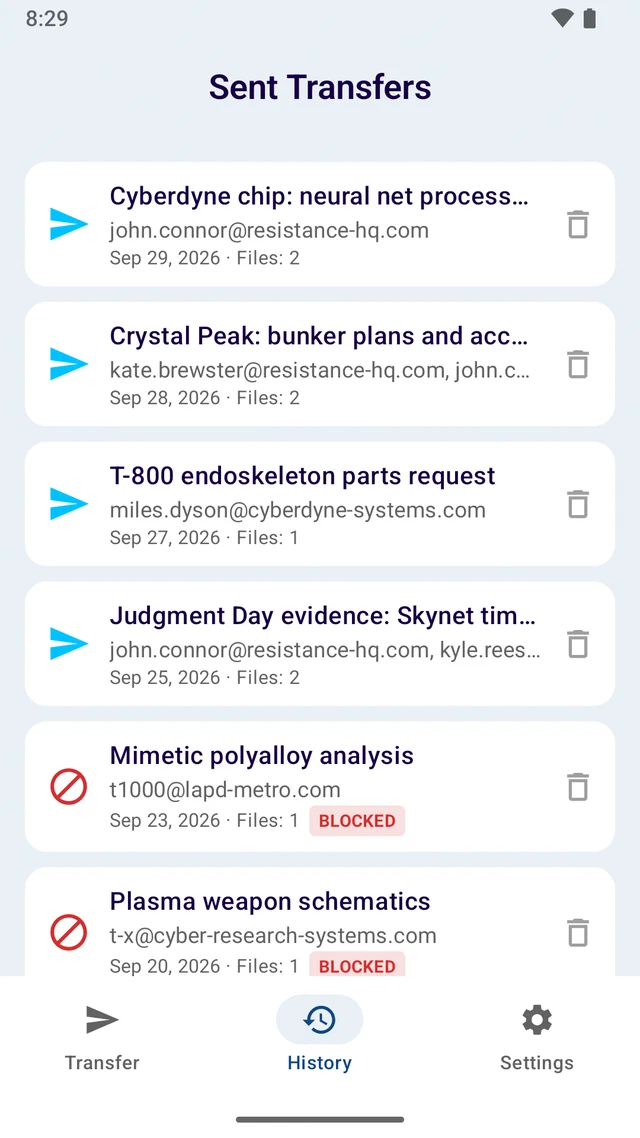
History is stored on the device only. It is not shared between devices and is lost when the app is removed.
Withdrawing (blocking) a transfer#
Sent something to the wrong person? Open the transfer in History and tap Block Transfer…. The app shows the recipients and files that will be affected; confirm with Block. Downloads stop immediately and every recipient is notified that the message was withdrawn.
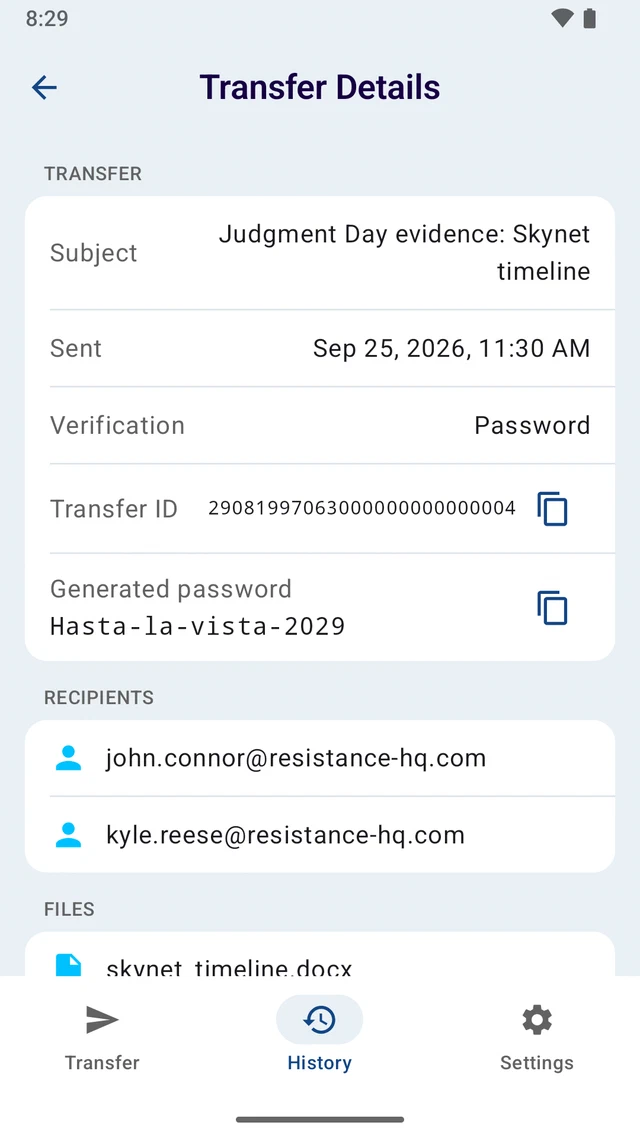
On FileCap servers older than 2026.10 the app asks for the Block ID first. You find it in the notification email FileCap sent you when the transfer was created (the blockId value in the block this message link).
Requesting files#
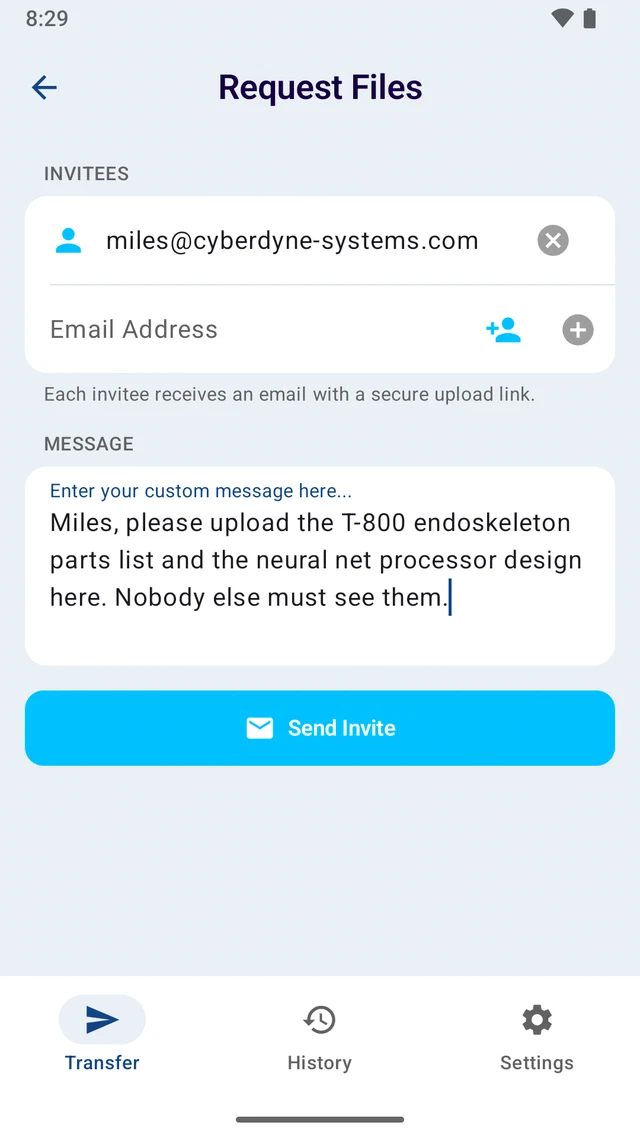
Need documents from a customer or supplier? On the Transfer tab tap Request Files, add the people you want files from, write a message and tap Send Invite. Each invitee receives an email with a secure upload link; they do not need an account.
Settings#
- Server Configuration and User Info: see Getting started.
- Transfer Defaults: the download count and retention proposed for new transfers.
- Verify Connection: checks the server and refreshes the policy.
- Server Policy: the server version, allowed verification methods and whether protection is mandatory.
- View Logs: the app’s diagnostic log, with Email Logs to Support to send it to FileCap support (see Troubleshooting).
Values shown with a lock icon are set by your organization and cannot be changed on the device.
Languages and accessibility#
The app follows the language of your device and is available in Dutch, English, German, French, Spanish, Italian, Swedish, Norwegian, Danish, Finnish, Polish, Portuguese, Turkish, Czech, Romanian and Ukrainian. On Android 13 and later you can choose a different language for FileCap alone, in the Android settings under App languages.
All controls are labelled for TalkBack and the text follows the font size set on the device.