

MDM configuration#
FileCap for iOS supports Apple’s managed app configuration: an MDM server pushes a small dictionary of settings to the app on every enrolled device. The app applies those settings itself, so the user never types a server name or API key, and locks every setting delivered by MDM so it cannot be changed on the device.
| Bundle identifier | com.contec.FileCap |
| Mechanism | Apple managed app configuration (com.apple.configuration.managed), supported by every MDM that manages supervised or user-enrolled iOS devices. No custom profile or entitlement is needed. |
| Minimum app version | 2.1 |
For the email alternative see Configuration link.
Keys#
| Key | Type | Required | Description |
|---|---|---|---|
host | String | yes* | Portal host name, for example company.filecap.eu. A full URL such as https://company.filecap.eu/FileCap is accepted and reduced to the host. |
apiKey | String | yes* | The portal’s API key, see Where to find the API key. The same key serves every user of the portal. |
email | String | yes* | The sender’s email address, as known to the FileCap server. |
phone | String | no | The sender’s mobile number, used for SMS verification. |
maxDownloads | Integer | no | Default download count per transfer. Clamped to the server maximum. |
maxDays | Integer | no | Default retention in days. Clamped to the server maximum. |
allowUserChanges | Boolean | no | true pre-fills the values but leaves them editable. Default false: delivered values are locked. |
* The app can only send once host, API key and email are all known. You may deliver a subset, for instance only host and apiKey, and let users supply the rest themselves or through a configuration link. Only keys present in the payload are locked; everything else stays editable. Leaving phone out is the right choice when the directory has no reliable mobile number or users have iPads without one; the number is optional in the app.
Key names are matched case-insensitively, and the aliases of the configuration link are accepted (hostname, portal, key, mail, senderEmail, mobile, mobileNumber, timesDownloadable, storeDays, daysAvailable). Unknown keys are ignored, empty values count as absent, and integers may be delivered as numbers or numeric strings.
Where to find the API key#
The API key belongs to the portal, not to a user, and is the same key the Outlook and Office 365 add-ins use. You find it in the FileCap admin panel under Configuration > Add-ins and apps > API Key; see Add-ins and apps for the setting and its options.
- The key is a string of 30 uppercase letters and digits. Do not regenerate it while add-ins or apps are using it: they all stop working until they are reconfigured.
- Because one key serves the whole portal, a single MDM policy can serve all users. Only
email(and optionallyphone) differ per user; the MDM fills those from its user variables, see below. - Treat the key like a password: it allows sending through the portal on behalf of any address the portal accepts. Scope who can read app configuration policies in your MDM console. Should the key leak, regenerate it in the admin panel and update the policy.
- If API registration required is enabled on the portal, every device must also be registered with a verification code that the server emails to the sender address. The app detects this after the MDM configuration is applied and guides the user through it (see Device registration). MDM cannot pre-register a device; the resulting device key is created on the device and bound to the host and sender address.
What the user sees#
- On the first launch after the configuration arrives, or immediately when the app is running or returns to the foreground, FileCap applies the settings and verifies them with the portal.
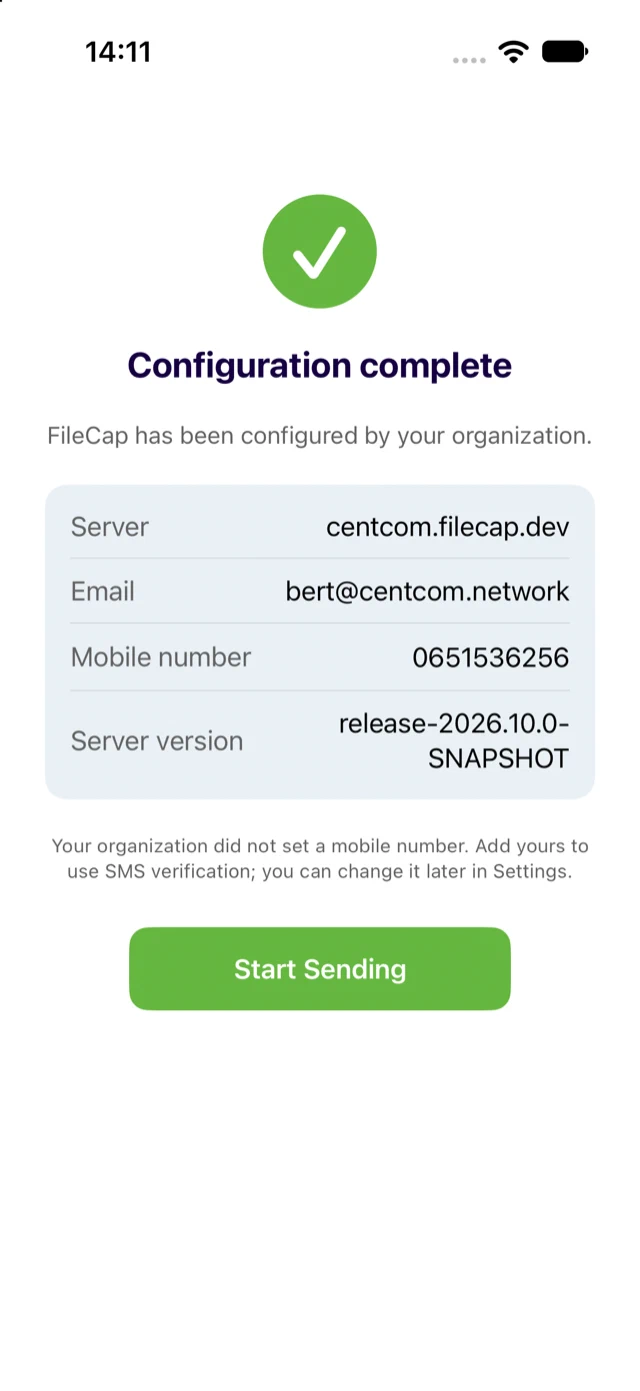
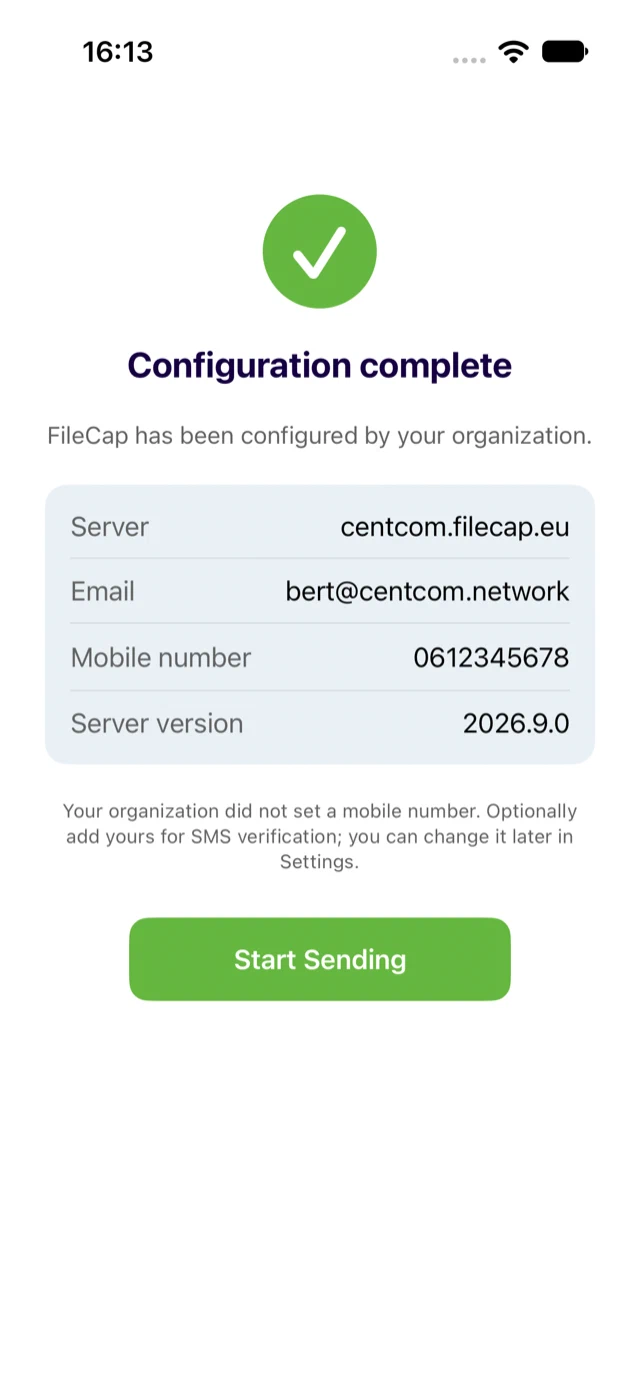
- A full-screen result appears: Configuration complete with server, email, mobile number and server version, or Configuration failed with the server’s reason (for example
INVALID_API_KEY). Managed values stay in place on failure; correct the payload in the MDM. - When the payload contains no
phone, the mobile number is an optional field on the result screen. Users on an iPad or without a mobile number leave it empty. - In Settings a Managed by your organization banner appears and every managed value is read-only with a lock icon. The API key is masked.
Delivering a changed payload re-runs the flow. Removing the payload unlocks the settings; the last delivered values are kept so the app keeps working.
Per-user values with MDM variables#
Every MDM substitutes variables in the payload with the enrolled user’s directory attributes, so one policy serves all users. Only include a key when your MDM can actually fill it: a key you leave out stays editable for the user, and an empty substituted value counts as “not delivered” as well.
| FileCap key | Microsoft Intune (Entra ID) | Google endpoint management | Jamf Pro | Ivanti EPMM / Neurons | Workspace ONE UEM |
|---|---|---|---|---|---|
host | literal | literal | literal | literal | literal |
apiKey | literal (portal key) | literal | literal | literal | literal |
email | {{mail}} or {{userprincipalname}} | ${user_email} | $EMAIL | $EMAIL$ | {EmailAddress} |
phone | no token: leave out | no token: leave out | $PHONE or $EXTENSIONATTRIBUTE_<#> mapped to LDAP mobile | $PHONE_NUMBER$ or $USER_CUSTOM1$..$USER_CUSTOM4$ | custom attribute via the lookup-value picker |
Example payloads#
Every example uses the placeholder key 0123456789ABCDEF0123456789ABCD; replace it with your portal’s key.
Downloads:
- FileCap-managed-configuration.plist: full plist for Jamf Pro, Kandji, Mosyle, Apple Configurator
- FileCap-AppConfig.xml: AppConfig Community specification for Workspace ONE, Ivanti and other consoles that render a form from it
- FileCap-intune-example.xml and FileCap-intune-example-no-apikey.xml
- FileCap-jamf-example.xml
- FileCap-google-example.xml
The dictionary itself:
<dict>
    <key>host</key>
    <string>company.filecap.eu</string>
    <key>apiKey</key>
    <string>0123456789ABCDEF0123456789ABCD</string>
    <key>email</key>
    <string>j.doe@company.com</string>
    <key>phone</key>
    <string>0612345678</string>
    <key>maxDownloads</key>
    <integer>10</integer>
    <key>maxDays</key>
    <integer>14</integer>
    <key>allowUserChanges</key>
    <false/>
</dict>
Microsoft Intune#
Intune substitutes only these tokens in iOS app configuration policies: {{userprincipalname}}, {{mail}}, {{partialupn}}, {{accountid}}, {{deviceid}}, {{userid}}, {{username}}, {{serialnumber}}, {{serialnumberlast4digits}}, {{udidlast4digits}}, {{aaddeviceid}}, {{issupervised}}, {{OnPremisesSamAccountName}}. The Entra ID attributes mobilePhone and businessPhones are not available, so the phone number is left to the user.
- Apps > App configuration policies > Add > Managed devices.
- Platform iOS/iPadOS, targeted app FileCap.
- Settings > Configuration settings format: Use configuration designer with the keys below, or Enter XML data with the Intune example file.
- Assign the policy to all users of the portal. One policy is enough, because the API key is the same for everyone and
{{mail}}fills in each user’s address. To lock only host and email and let users enter the API key themselves, use the no-API-key example.
| Configuration key | Value type | Configuration value |
|---|---|---|
host | String | company.filecap.eu |
apiKey | String | the portal’s API key |
email | String | {{mail}} |
maxDownloads | Integer | for example 10 |
maxDays | Integer | for example 14 |
allowUserChanges | Boolean | false |
If {{mail}} is empty for some accounts (no Exchange mailbox), use {{userprincipalname}}, provided the UPN equals the address the FileCap server knows.
Jamf Pro#
- Devices > Mobile Device Apps, add or open FileCap (bundle
com.contec.FileCap). - Tab App Configuration > Preferences: paste the dictionary with the portal’s API key.
- Use
$EMAILforemailand$PHONEforphone(both from the device’s User and Location inventory, filled from the directory during enrollment). - Scope the app to the target devices or users and save. The configuration is delivered with the install, or on the next check-in for devices that already have the app.
Google endpoint management (Google Workspace)#
Requires advanced mobile management for iOS. Google substitutes only ${user_email}, ${customer_id}, ${device_resource_name}, ${device_serial_number}, ${device_serial_number_last_4} and ${udid}; there is no token for the phone number.
- Google Admin console > Apps > Web and mobile apps, add the iOS app FileCap.
- Open the app > Managed configurations > Add configuration, paste the dictionary (the Google example uses
${user_email}foremail) and save. - Assign the configuration to an organizational unit or group; different OUs can receive different configurations.
Omnissa Workspace ONE UEM#
- Resources > Apps > Native > Public, add FileCap from the App Store.
- Assign > Add Assignment > Application Configuration > Enabled: upload
FileCap-AppConfig.xmlor add the keys manually. - Use
{EmailAddress}foremail; insert a custom user attribute forphonewith the lookup-value picker next to the field.
Ivanti Neurons for MDM / Ivanti EPMM#
- Apps > App Catalog, add FileCap.
- App Configurations > Managed App Config (Neurons) or iOS Managed App Configuration (EPMM): import the AppConfig XML or add key/value pairs.
$EMAIL$,$PHONE_NUMBER$and$USER_CUSTOM1$to$USER_CUSTOM4$are supported. - Distribute to the target users or devices.
Kandji, Mosyle, Addigy, Apple Business Essentials#
Open the app in the library or catalogue, find App Configuration (Kandji: Managed App Config; Mosyle: Management Profiles > App Config) and paste the dictionary. Consult the vendor’s documentation for variable syntax.
Feedback to the MDM#
After each verification the app writes a Managed App Feedback dictionary (com.apple.feedback.managed) that Jamf Pro, Workspace ONE and Ivanti can collect from the device. Intune and Google endpoint management do not expose this feedback.
| Key | Example |
|---|---|
status | connected or failed |
error | Server error: INVALID_API_KEY (only when failed) |
host | company.filecap.eu |
email | j.doe@company.com |
serverVersion | 2026.10.0 |
appVersion | 2.3.0 |
lastChecked | 2026-09-21T09:46:12Z |
The API key is never written to feedback.
Troubleshooting#
| Symptom | Cause / fix |
|---|---|
| Configuration failed: INVALID_API_KEY | The key is not the portal’s current API key, or it was regenerated in the admin panel. Copy the current key into the policy; the app re-verifies when the new payload arrives and on every start. |
| Settings are not locked | The payload did not reach the app (check the MDM’s app configuration status), or allowUserChanges is true. The app log (Settings > View Logs, category MDM) shows Applying managed configuration when a payload is applied. |
| Settings stay locked after removing the payload | The app re-reads the payload on launch and when it returns to the foreground. Force-quit and relaunch. |
| Only some values are locked | Only keys present in the payload are locked. |
| Values differ from the payload | maxDownloads and maxDays are clamped to the server maximum; a full URL in host is reduced to the host name. |