

Installation options Outlook Add-in
There are two ways to install the FileCap Outlook add-in. This can be done using an .EXE or .MSI file.
Click here to download the add-in
Install the EXE file#
If you choose to install the FileCap Outlook add-in using the .EXE file, you will see the following screen.
All fields are required:
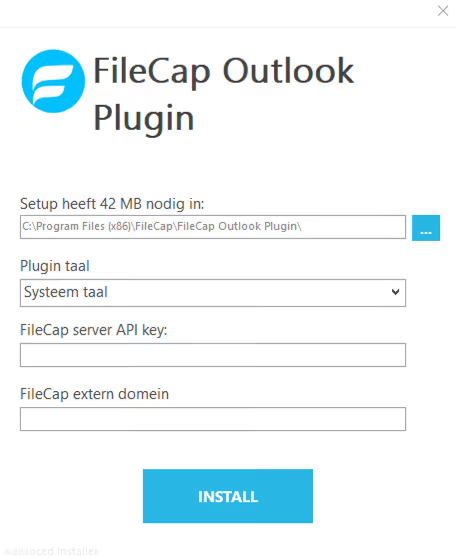
| Setting | Description |
|---|---|
| Installation directory | Select the installation directory for the plugin here. The default location is recommended |
| Plugin Language | Select the language in which the plugin should be available. |
| FileCap server API key | Enter the FileCap server API key here; it can be found in the FileCap Admin portal under Configuration > Add-ins > API Key |
| FileCap external domain | Enter the FileCap domain on which the FileCap server is reachable via the internet. Example: yourcompany.filecap.eu |
Install the MSI file#
The MSI installation can be used to install the FileCap Outlook add-in using, for example, a login script or Group Policy.
For the MSI installation, two parameters are required and 1 is optional:
| Parameter | Description |
|---|---|
| APIKEY | Enter the FileCap server API key here; it can be found in the FileCap Admin portal under Configuration > Add-ins > API Key |
| FILECAPDOMAIN | Enter the FileCap domain on which the FileCap server is reachable via the internet. Example: yourcompany.filecap.eu |
| LANGUAGE | Optional parameter; if the FileCap Outlook Plugin needs to be installed in a specific language, this parameter can be provided. Note: If this is not provided, the system language will be used. If the system language is not supported, it will fall back to English. Supported values: system, nl, en, sv, fi, no, da, de. |
Example of a silent installation#
Run the following command with administrator rights to silently install the FileCap Outlook add-in:
msiexec /quiet /i FileCap_Outlook_Plugin.msi APIKEY=xxxxxxxxxxxxxxxxxxxxxxxxxxxxxx FILECAPDOMAIN=yourcompany.filecap.eu
Windows Event logging#
The FileCap Outlook add-in can log events/errors in the Windows event log, so that additional debug capabilities are available.
Run the following command with administrator rights after installing the MSI to activate Windows event logging:
eventcreate /ID 1 /L APPLICATION /T INFORMATION /SO FileCap /D “Log source created”
#
Registry settings#
All required and optional registry settings for the FileCap Outlook add-in are available on the following page: Specific settings Outlook Add-in