

Administrator Guide#
Documentation for administrators of the FileCap administration portal.
Logging in to the admin panel#
The administration portal is available at your organization’s FileCap URL followed by /admin. For example, if your FileCap portal runs at https://yourcompany.filecap.eu, the admin panel is at:
https://yourcompany.filecap.eu/adminEnter your admin username and password and click Login.
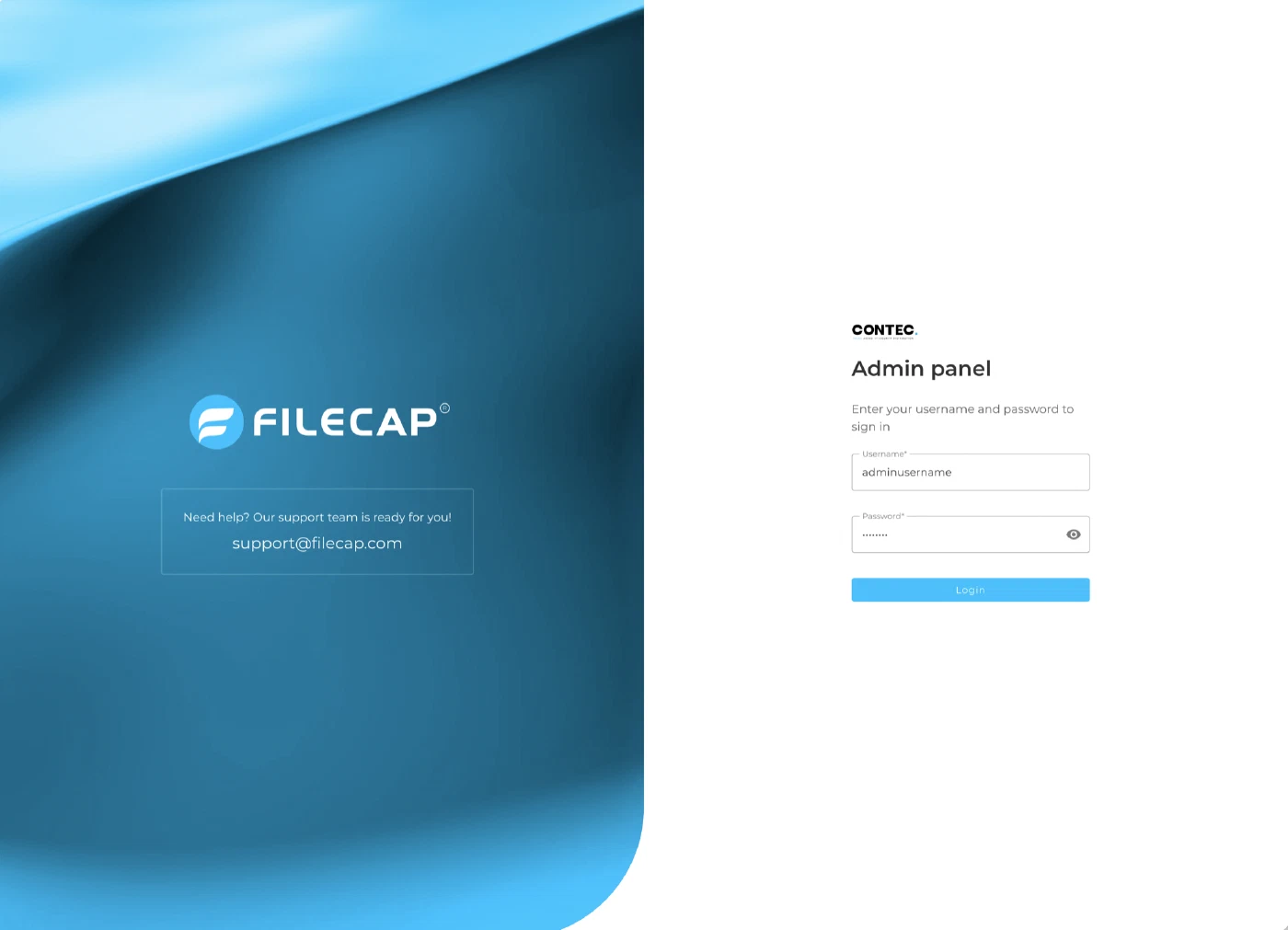
Note: access to the admin panel can be restricted to specific networks. If logging in fails with an error even though your credentials are correct, check the IP restrictions with your administrator.
First-time setup#
Setting up a new FileCap portal? Work through these steps in order:
- Portal access: check the list of email domains, so FileCap knows which senders and recipients are internal. Portals created through the trial sign-up already contain the domains entered at sign-up. Portals created by a reseller start with the example domains
domain1.comanddomain2.com; replace those with your organization’s own domains. - Mail (optional): by default FileCap sends notifications and download links through its own mail service, and there is nothing to configure. We recommend keeping this default. Only configure your own mail server if mail must go through it.
- Attachment settings: block file types you do not want to receive and set how long files are kept and how often they can be downloaded.
- Business rules: decide whether you will use business rules before you install the Outlook add-in. This choice decides which manifest you need: the admin panel warns “Business rules are enabled. Do not use this manifest.” on the manifest for modern Outlook clients.
- Add-ins: check the API key and download the manifest that matches your business rules choice, so users can send files from Outlook. The API key is built into the manifest: if you change the API key later, download the manifest again, remove the old add-in and deploy the new manifest.
- Admin panel access and two-factor authentication: limit the admin panel to your own networks and enable two-factor authentication for your admin account, so the admin panel stays protected.