

Admin panel
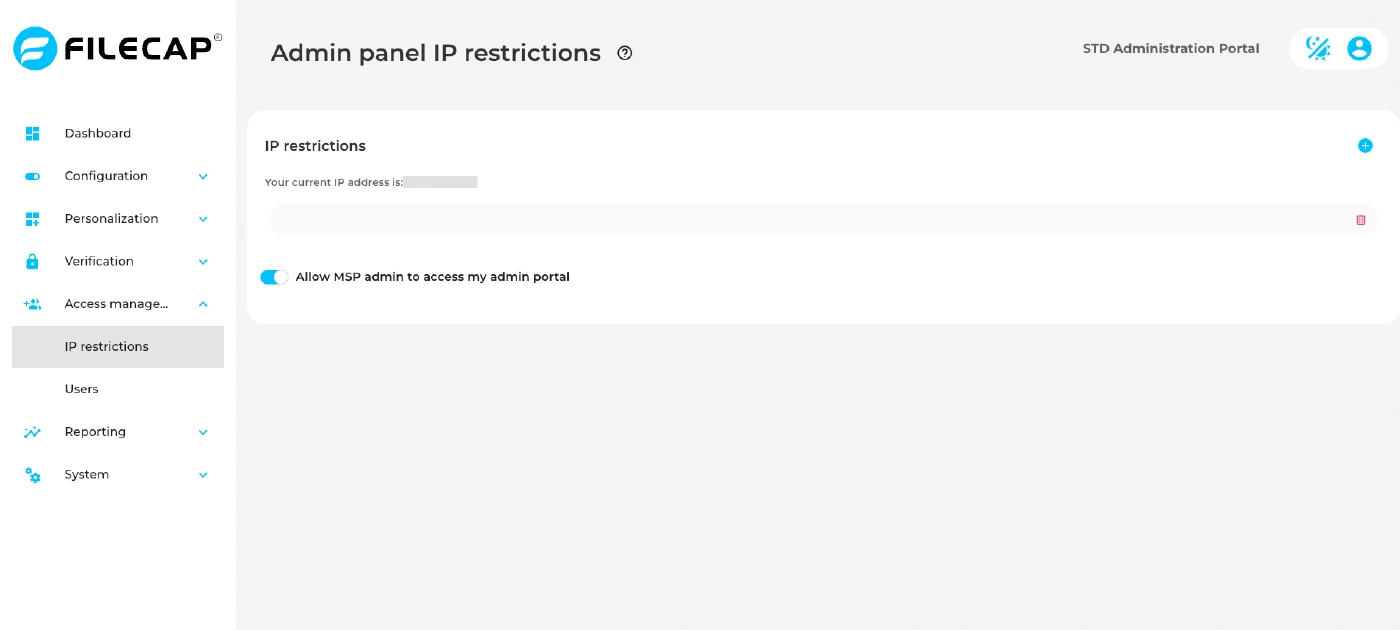
Go to Access management > IP restrictions.
| Setting | Description |
|---|---|
| IP restrictions | Specify the networks that are allowed to log in to the admin panel. Add one entry at a time: click +, enter the address in the Add IP address dialog and click Add. Write each entry as an IPv4 address with a prefix length or subnet mask (XXX.XXX.XXX.XXX/XX or XXX.XXX.XXX.XXX/XXX.XXX.XXX.XXX), or as an IPv6 address with a prefix length. Start by adding your office’s public IP address, shown as “Your current IP address”, for example 203.0.113.10/32. Private ranges such as 192.168.0.0/16 have no effect, because the admin panel is reached over the internet. When the list is empty, every IP address is allowed. Beware: improperly filling this in will get you blacklisted from your own admin panel! |
| Allow MSP admin to access my admin portal | If this option is enabled, the MSP server administrators can access this FileCap portal’s settings. |
Admin panel users#
Go to Access management > Users. This section displays all FileCap admin users who can log in to this FileCap admin portal. It is also possible to create a new admin user here. Beware, this concerns Admin users!