

Add-ins
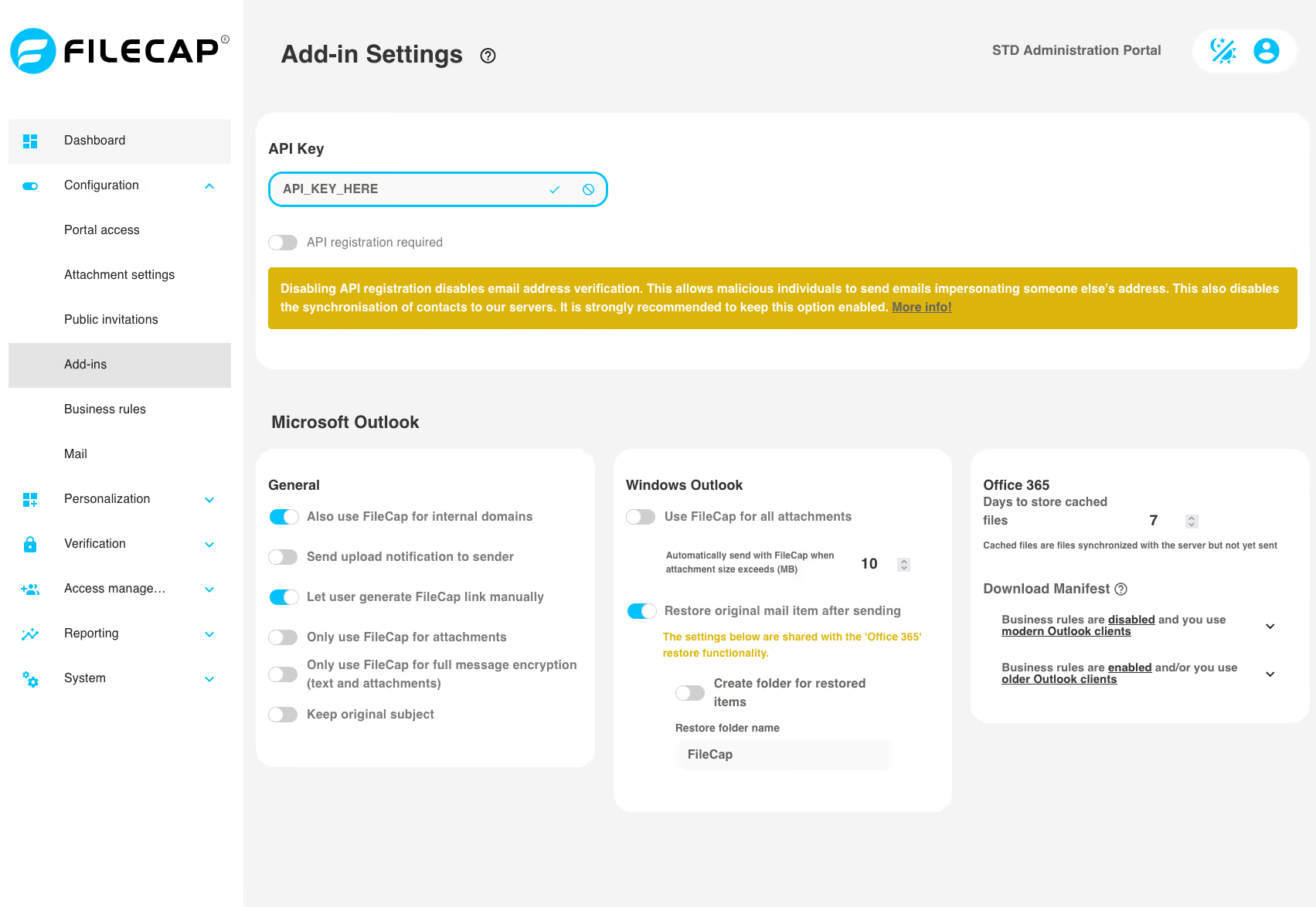
| Setting | Description |
|---|---|
| Also use FileCap for internal domains | When enabled, FileCap is also used for internal domains. |
| Use FileCap for all attachments | Sends all files attached to an email via FileCap. |
| Automatically send with FileCap when attachment size exceeds (MB) | Sets a size threshold (MB) at which the Outlook plugin automatically sends the email via FileCap. Example: 3 means the email is auto-sent via FileCap if the combined attachments exceed 3MB. |
| Send upload notification to sender | Notifies the sender that files were successfully sent via the FileCap Outlook plugin, including a link to block the transfer. |
| Restore original mail item after sending | Restores the original email and attachments in the Outlook Sent Items folder. |
| Create folder for restored items | Creates a folder to hold the restored emails if you prefer it to not be stuck inside the regular “Sent Items”. |
| Put restore folder inside sent items | Places the restore folder inside the Sent Items folder as a sub-folder instead. |
| Restore folder name | Sets the name of the folder to be created. |
| Days to store cached files | Cached files are files added via the FileCap Web plugin before the email has been sent. This setting is the maximum number of days these files are kept on the FileCap server until the original email is sent. Once sent, the files are automatically moved to the corresponding transfer and stored for the number of days set for that transfer. |
| Let user generate FileCap link manually | Lets users generate a link and paste it into their email, preserving message formatting. This can only be done through the add-in after uploading the files in the corresponding add-in UI. Instead of then “sending” the email with FileCap, you transform the attached items into a FileCap link you are given. This link can then be shared outside of the email environment, thereby removing the need to send an email if so desired. |
| Keep original subject | Allows for the original email subject to be shown in the opening and receiving of the FileCap mail. Recommended on. |
Manifest#
| Setting | Description |
|---|---|
| Download manifest | Multiple manifest files are available for the FileCap Outlook add-in. Which manifest should be used depends on the Outlook clients within the organization and the use of business rules. |
| Modern Outlook clients | Use this manifest when business rules are disabled and only modern Outlook clients are used, such as Outlook Web (OWA), the new Outlook for Windows, and Outlook for macOS. This manifest is suitable for most modern Office 365 environments. |
| Older Outlook clients / business rules | Use this manifest when business rules are enabled, when users have a mailbox on Exchange Server on-premises, or when older Outlook clients are used, such as Outlook 2016, Outlook 2019, Outlook LTSC 2021, classic Outlook for Windows older than version 2404, or classic Outlook for Mac. Classic Outlook for Windows version 2404 or later (Microsoft 365, Outlook 2021 retail or Outlook 2024) can use the manifest for modern Outlook clients. See Download the manifest file. |
Why are there multiple manifests?#
Modern Outlook clients do not support all functionality available in older Outlook versions. This applies, among other things, to certain business rules.
To guarantee correct operation and compatibility, FileCap provides different manifest files per scenario. Using the correct manifest prevents compatibility issues and unexpected behavior of the Outlook add-in.
Selection guide#
- If you only use modern Outlook clients and no business rules, choose the manifest for modern Outlook clients.
- If you use business rules and/or older Outlook clients, choose the manifest for older Outlook clients.
API Key#
| Setting | Description |
|---|---|
| API Key | The API key consists of a string of 30 characters made up of uppercase letters and numbers. It usually does not need to be changed. Important: Do not change the API key if applications are already using the current API key. Changing the API key will prevent these applications from connecting to the FileCap server until they are reconfigured. After changing the API key, download the manifest again and reinstall the Office 365 add-in. See Updating the manifest. |
| API registration required | If this option is enabled, the API key can only be used once the user’s email address has been verified. This happens automatically via email when using the FileCap plugins. This prevents the user from using the email address of a person they do not have access to. |
What is registration of the add-in?#
When registering the Outlook add-in, the FileCap environment generates a unique code per user, which is provided once to the user at their email address. This process is initiated by the user when they open the FileCap add-in for the first time. A “Register” button appears, and when the user clicks it, they receive an email with a code. This code must be entered in the add-in to complete the registration. After this, the add-in can be used as usual.
Registration of the Outlook add-in#
By default, when deploying and using the FileCap Outlook add-in, users do not need to register the add-in. This makes deployment of the add-ins simple: they can be installed at once, for example via Intune or SCCM, for the entire organization, and everyone can use FileCap immediately.
However, it is important to know that registration of the add-in is desirable or even necessary in a number of scenarios. These scenarios are explained below.
Security#
When registration is not enabled, a user can use FileCap immediately, without first verifying themselves with the FileCap environment. This makes it possible, for technically inclined users, to send an email with FileCap on behalf of other people within an organization.
This is not easy, and when it is done, it is deliberate and possibly even punishable or in violation of company rules. It is possible, however, because the add-in is not linked to a specific user.
Loss of FileCap’s ability to use the Outlook address book#
When no registration has taken place, it is not possible to use the Outlook address book in combination with FileCap. This is because the FileCap add-in is not linked to an email account and therefore cannot retrieve and use contacts, or retrieve mobile phone numbers from the address book for recipients who have previously received a message.
In practice, this means that without registration, users will have to manually enter email addresses and, when using SMS verification, mobile phone numbers in the add-in each time, and these are not saved in the add-in or address book.
Existing installations with or without registration#
If registration was first required within a FileCap environment and is then disabled, it may happen that some users, whose registration was already completed, can use the address book, while new users without registration cannot.
Conversely, if registration was not required and is then made mandatory, users will be confronted with a registration request when opening FileCap within Outlook.
In these kinds of exceptional situations, it is important to communicate clearly with users to prevent unexpected behavior and confusion.