

Admin user settings
In the top right corner, the following user menu can be found:
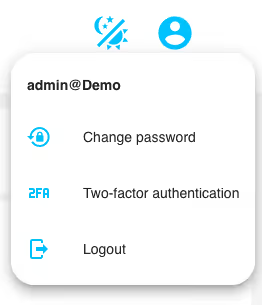
The following actions are possible here:
Change Password#
When you click this, you will see the following screen:
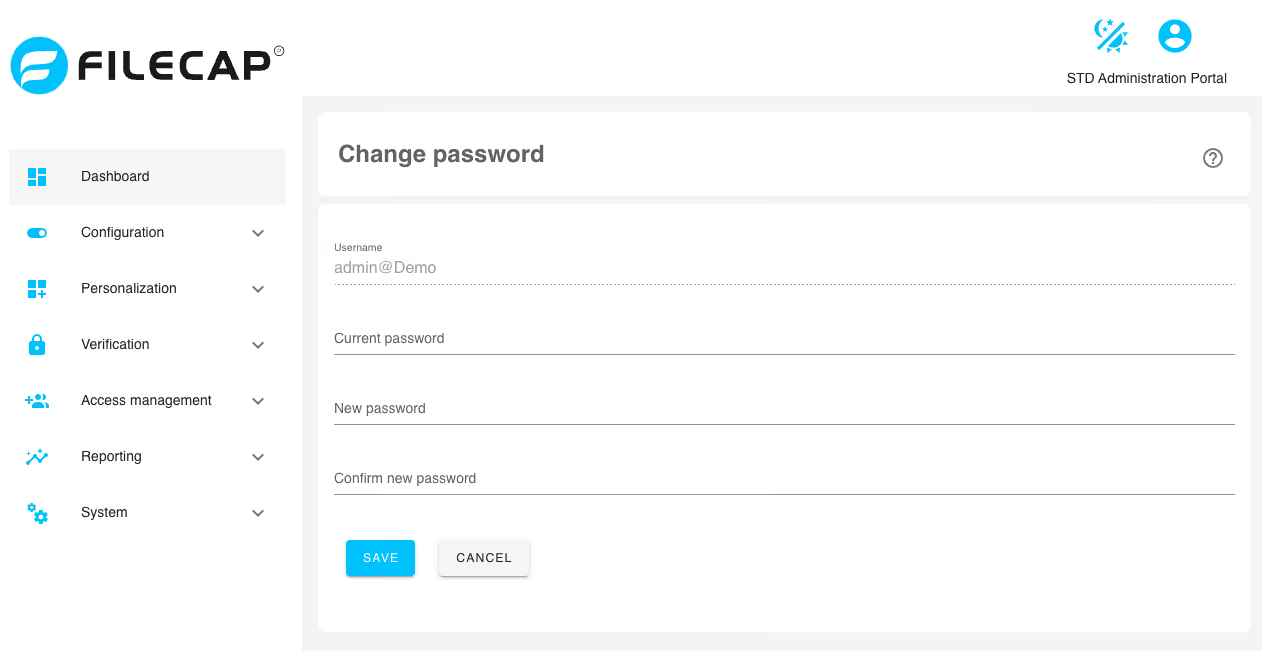
| Field | Description |
|---|---|
| Username | The currently logged-in user is displayed here. The password of this user will be changed. |
| Current password | Enter the current password here. |
| New password | Enter the new password here. |
| Confirm new password | Confirm the new password by entering it again. |
Two-factor authentication#
With this option, it is possible to activate two-factor authentication for extra security of the administrator account. When you click this button, you will see the following screen:
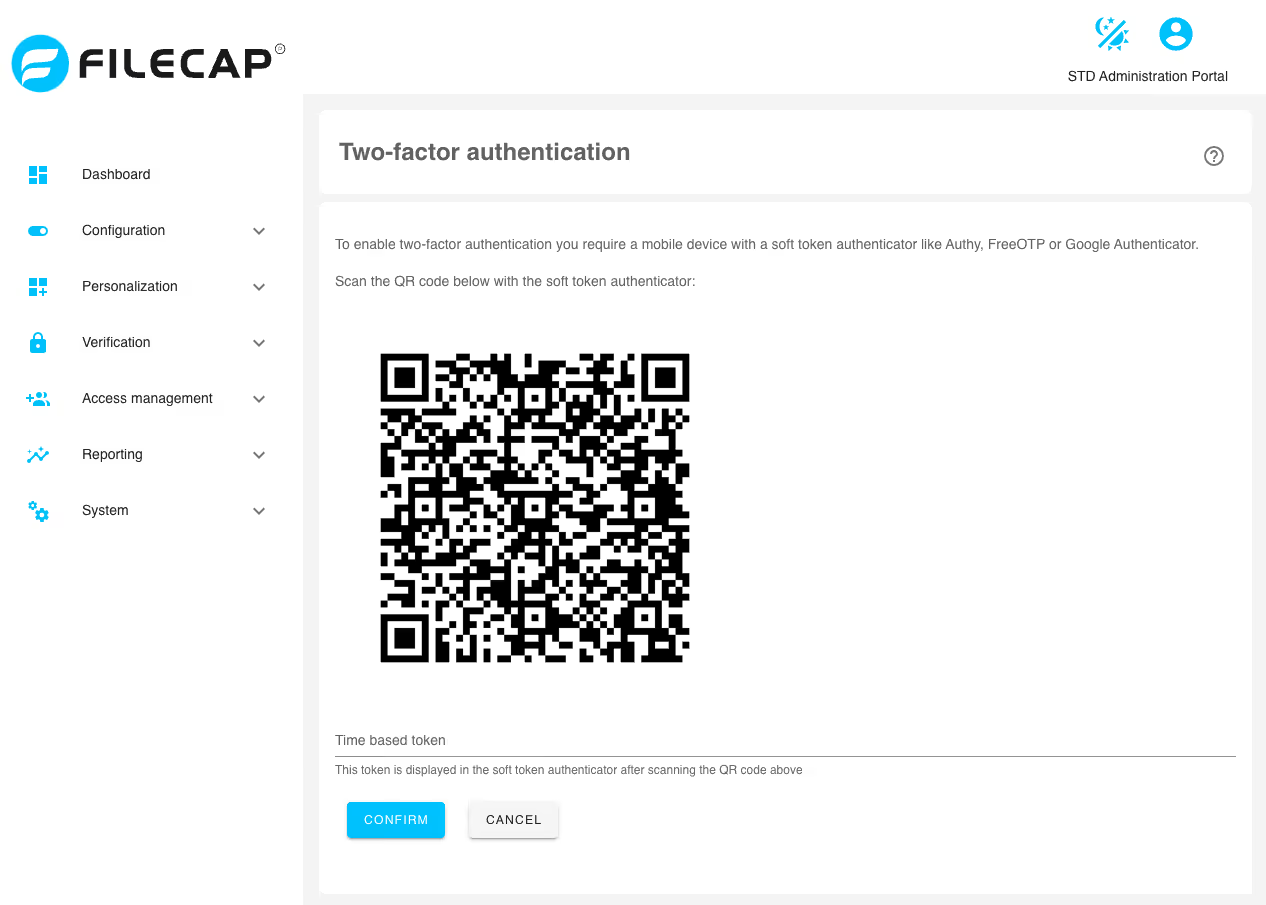
Scan the QR code with an authentication application, such as Authy, FreeOTP, or Google Authenticator, and enter the currently obtained token in the “Time based token” field.
Two-factor authentication is then enabled for this administrator account, and after entering the password to log in to the administration portal, a two-factor code will need to be provided.
Logout#
To log out of the FileCap administration portal, click this button.
#
Light/Dark mode#
The following button can be used to switch between a light or dark administration portal interface.
