

Portals
Note: This page is only available to MSP admins.
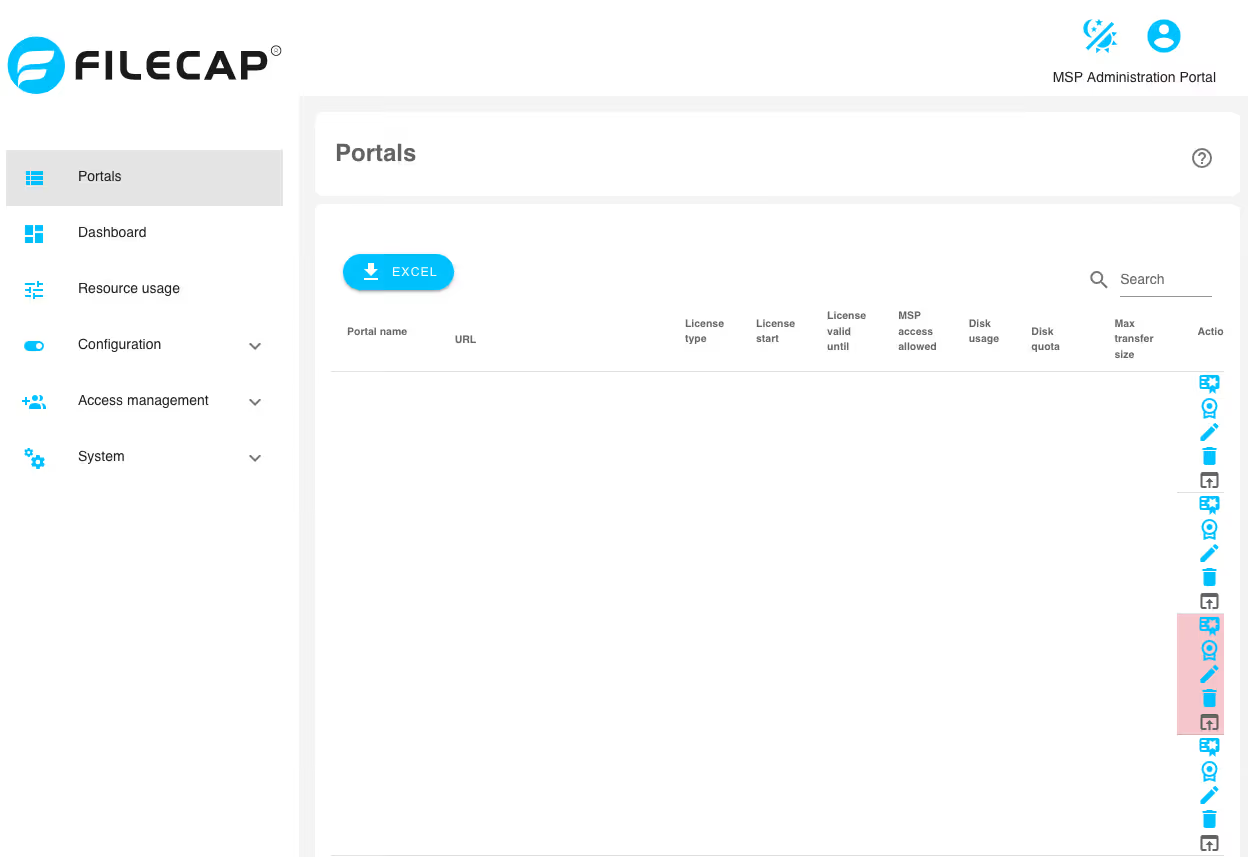
This screen shows a list of all FileCap portals that are active on this FileCap server.
The following items are shown on this page:
- Portal name
- URL
- License type
There are multiple license types possible:MSP-SUB
This is a paid FileCap license.SUB-Trial
This is a 30-day trial license; portals with this license will have a yellow background color in this overview. These licenses can be converted into a paid FileCap license (MSP-SUB) at any time.
- License start
- License valid until
It is possible for the MSP admin to extend a license by clicking the license icon under Actions. - MSP Access allowed
- Disk usage
- Disk quota
- Max transfer size
- ActionsThe actions are described below.
Adding a new portal#
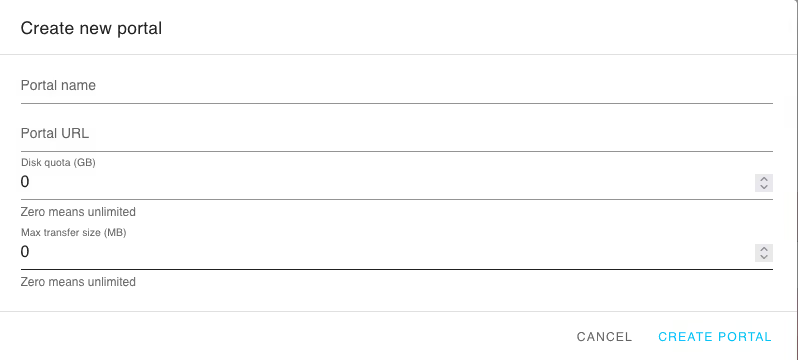
With the “New” button, it is possible to create a new portal.
| Setting | Description |
|---|---|
| Portal name | Enter the portal name that is displayed in the portal overview. |
| Portal URL | Enter the FQDN that will be used for this FileCap portal (for example filecap.customer.nl) |
| Disk quota (GB) | Enter the number of gigabytes (GB) that this portal can use for storing transfers. Note: 0 (zero) can be used so there is no limit. |
| Max transfer size (MB) | Enter the number of megabytes (MB) that this portal can send in one transfer. Note: 0 (zero) can be used so there is no limit. |
Settings for existing portals#
Certificate settings#
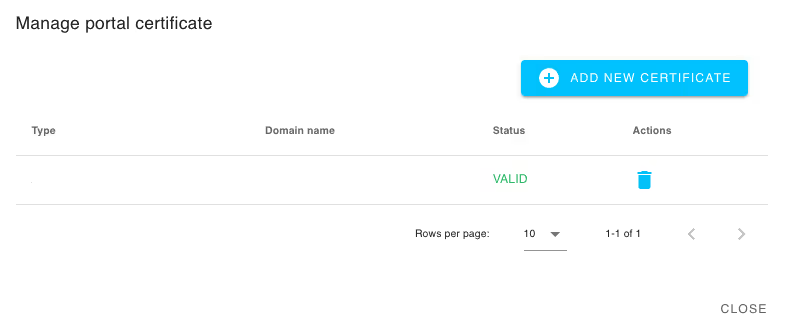
With the certificate settings button, it is possible to view the status of the certificate of the portal in question.
Under “Add new certificate”, it is also possible to request new certificates. There are two options:
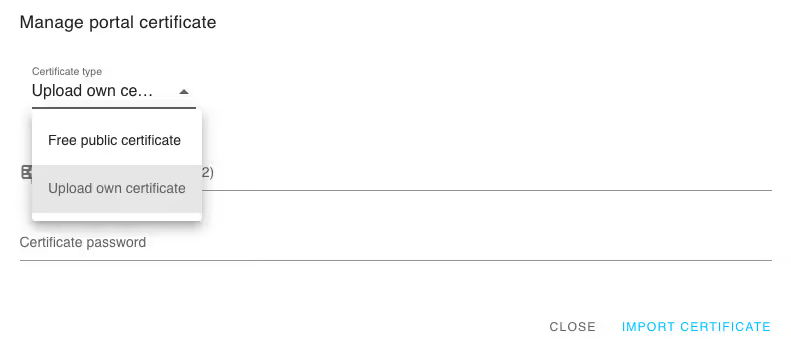
Free public certificate#
By using this option, a certificate is automatically requested via Let’s Encrypt.
Upload own certificate#
If this option is selected, it is possible to upload your own certificate for this specific portal.
| Setting | Description |
|---|---|
| SSL certificate (PFX/P12) | Select the PFX or P12 file containing the certificate. Note: the PFX/P12 must contain at least the following: - The certificate - CA and intermediate certificates - Private key If one of the above items is missing, importing the certificate will fail. |
| Password | Enter the password of the PFX/P12 here so it can be installed. |
View license#
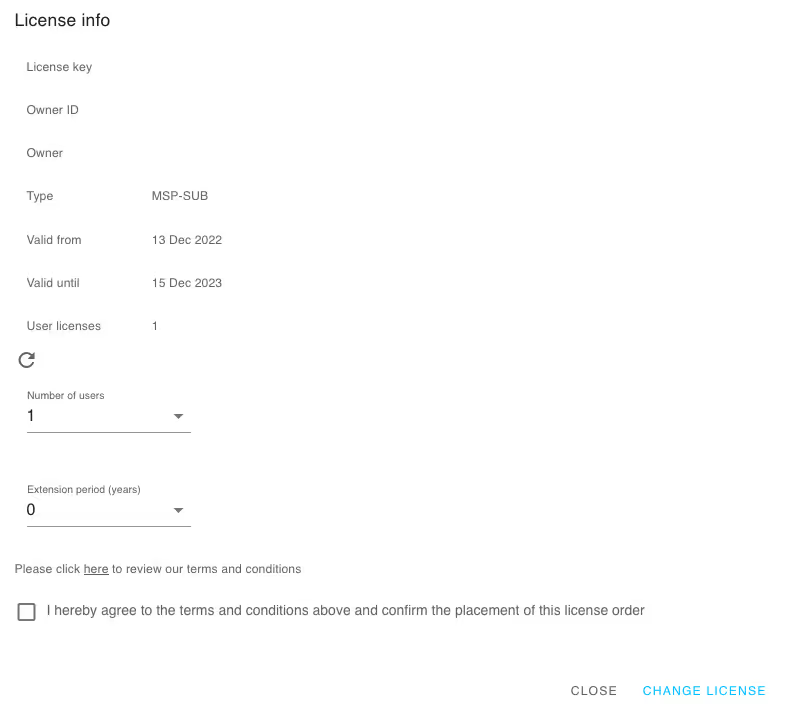
With the view license button, it is possible to view the license, extend it, or request a new license.
Request/Change license#
When the request or change license button is clicked, two selection fields become available: “Number of users” and “Number of years” or “Extention period (years)”. With these, an MSP admin can convert the license of the customer in question from a SUB-Trial to a paid MSP-SUB license, or extend an existing license with more users or additional duration.
The reseller of the FileCap MSP server in question will receive an invoice from FileCap Sales for the requested licenses.
Modify#
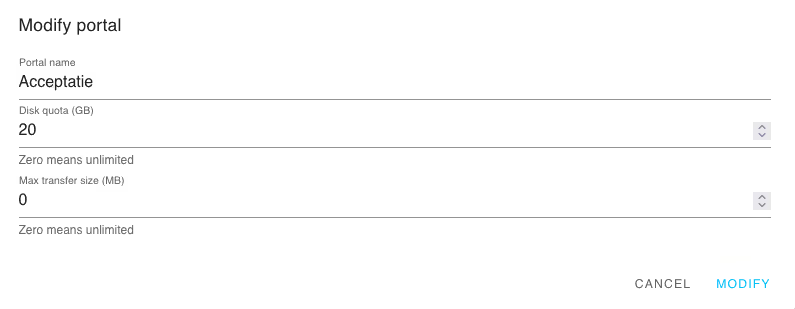
Here are a number of options for modifying the portal in question; the following options are possible:
- Change the portal name that is displayed in the portal list.
- Change the “Disk quota” of this portal, in gigabytes. If this is set to 0, there is no limit.
- Change the “Max. transfer size” of this portal, in megabytes. If this is set to 0, there is no limit.
Delete#
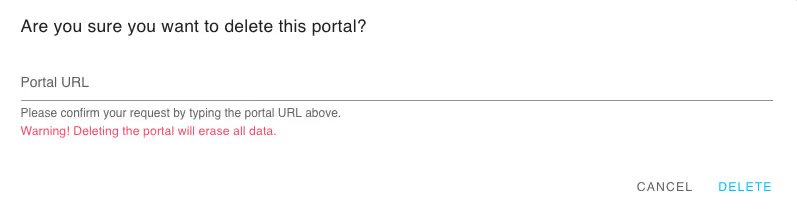
To delete the portal in question, the portal URL must be entered as confirmation.
When the portal is deleted, all data sent via this portal will also be deleted.
Open portal#
This allows logging in to the portal in question as an “MSP User”. This is only possible if “MSP access allowed” is activated (which is the default setting). End users can change this setting under “Admin panel”, so that MSP resellers do not have access to the portal.