

Text management
Outlook Plugin#
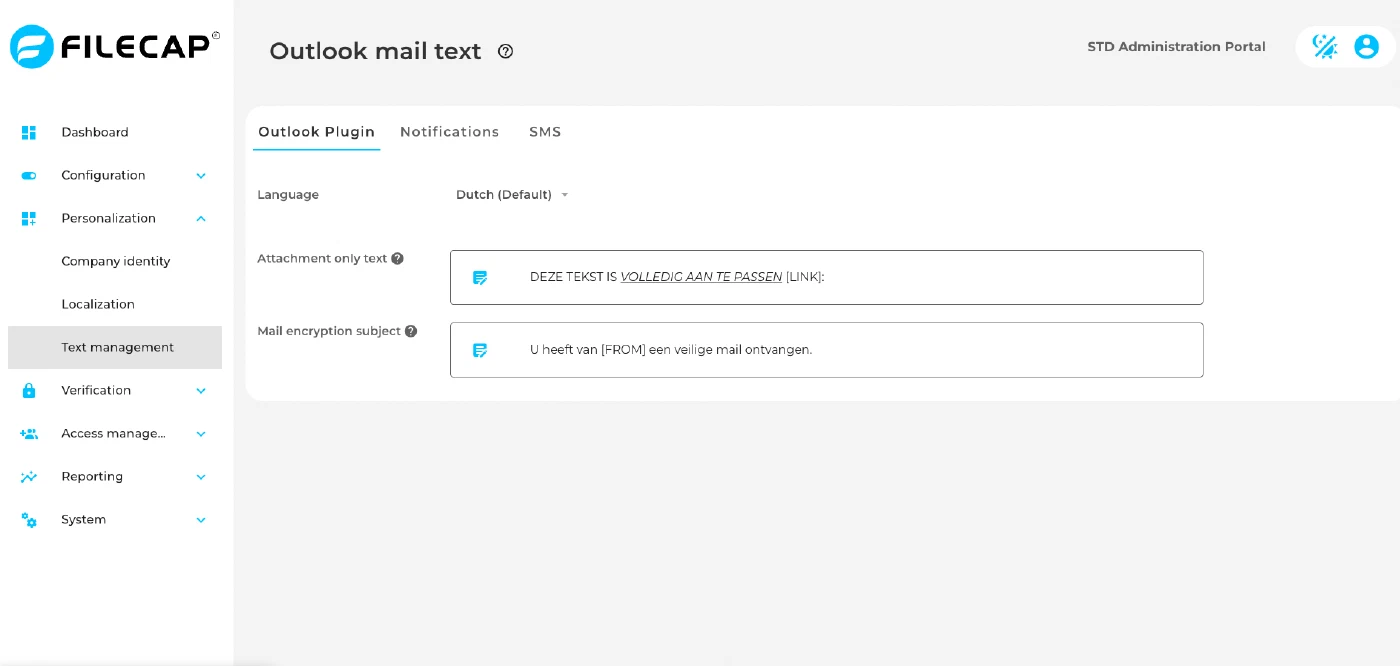
| Setting | Description |
|---|---|
| Attachment only text | Text added to the email by the FileCap Outlook or Office 365 add-in when FileCap is configured to only send attachments. Use the [LINK] placeholder for the link to the FileCap portal; without it, the link is added on a new line after the text. HTML is allowed. |
| Mail encryption subject | Replaces the email subject when an encrypted message is sent with the FileCap Outlook or Office 365 add-in, unless “Keep original subject” is enabled. Use the [CID] placeholder for the conversation ID and [FROM] for the email address of the sender. |
Notifications#
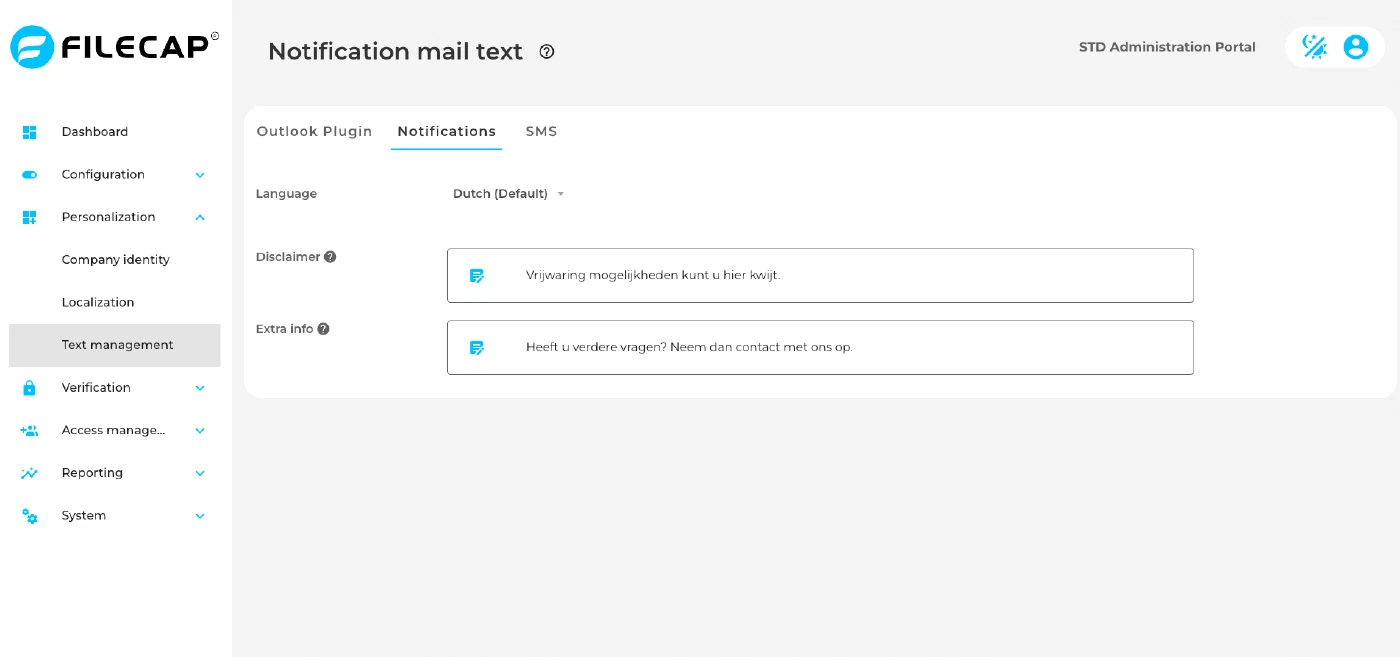
| Setting | Description |
|---|---|
| Disclaimer | Enter a disclaimer text here that will be displayed at the bottom of the notification emails. HTML is allowed. |
| Extra info | Enter a text here that will be displayed after the “This message was sent with FileCap” text. Plain text only. |
SMS#
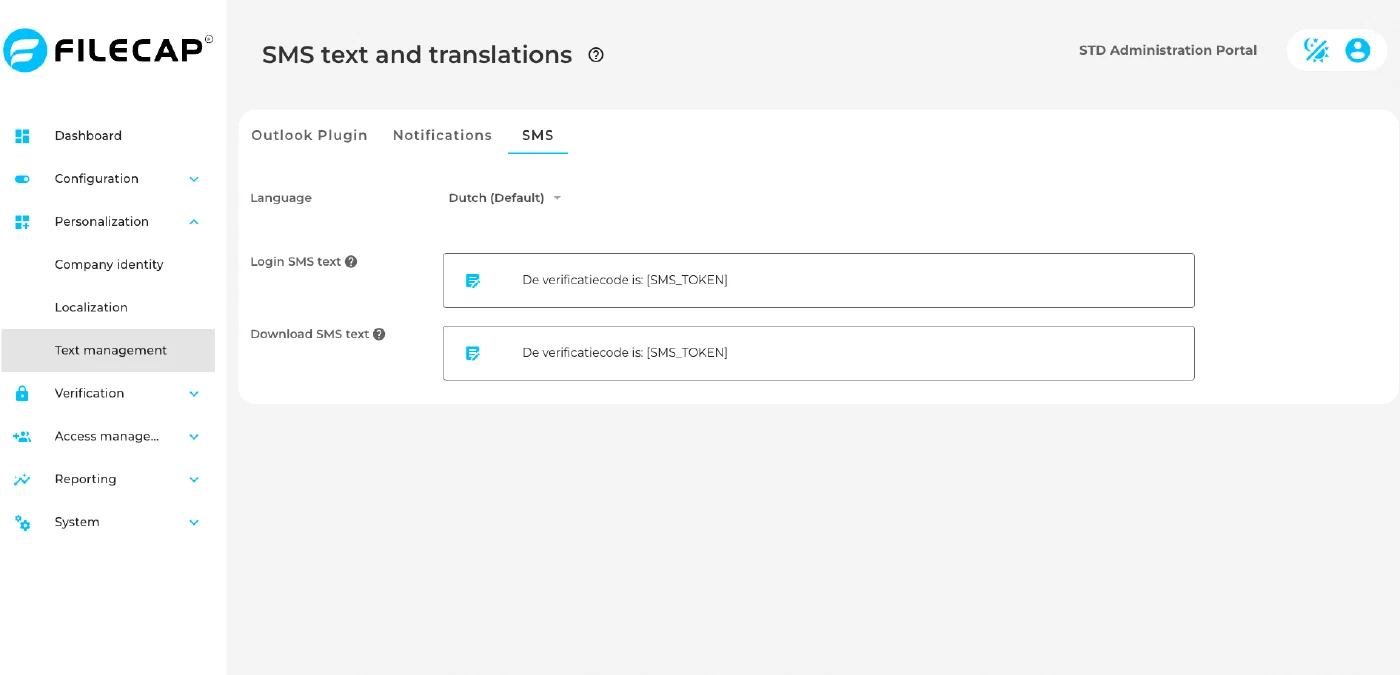
| Setting | Description |
|---|---|
| Login SMS text | Sent when a sender logs in to the web portal to send files and “Sender requires SMS verification” is enabled under Portal access. Senders who use an invite do not receive it. |
| Download SMS text | Sent to a recipient to verify the download of a transfer or secure message. The Test SMS also uses this text. |
Both SMS texts are limited to 70 characters. Use the [SMS_TOKEN] placeholder for the verification code. By default, the text consists of only this placeholder.