

Company passwords
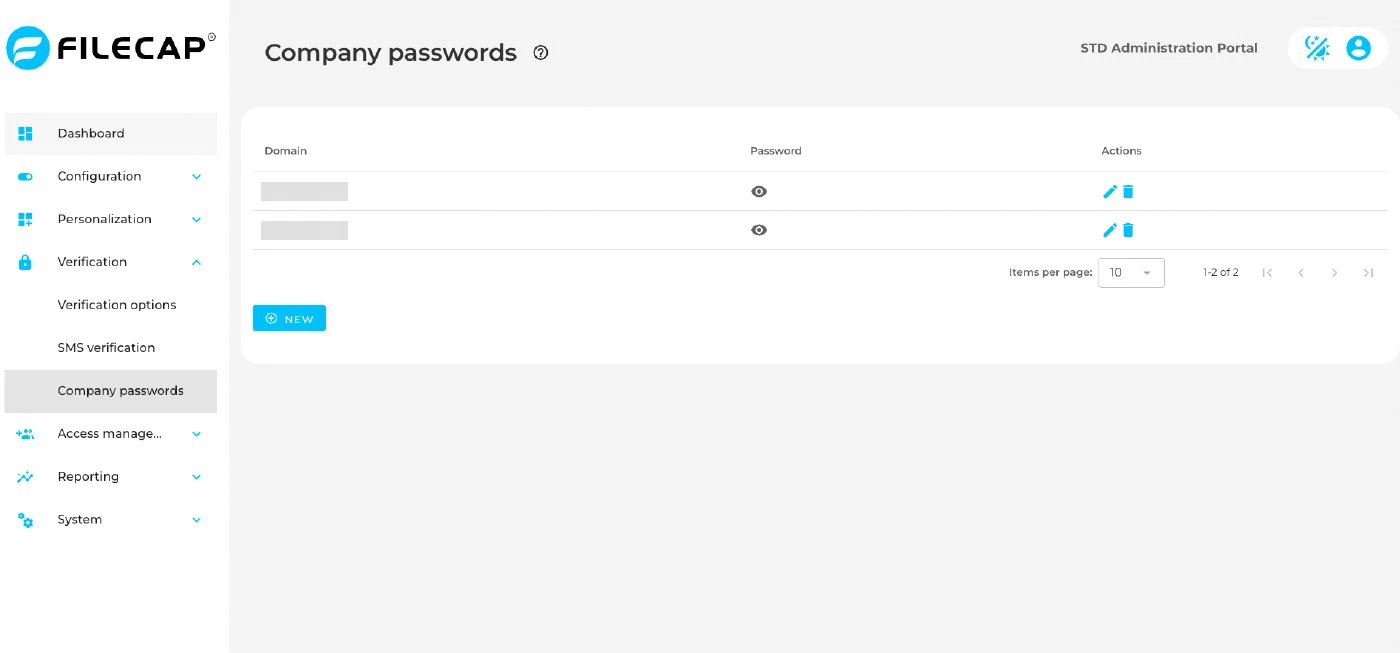
A company password is a password you agree on in advance with another organization that you exchange files with regularly. You link the password to that organization’s email domain, for example example.com. When a user sends a transfer with the “Company password” verification method, a recipient with an @example.com address opens the transfer by entering that agreed password. Your users do not have to share a new password for every transfer.
Use company passwords for organizations you exchange files with often, where both sides want a fixed password instead of a code per transfer.
Before you start#
- Your own domain is configured. Go to “Configuration” > “Portal access” and make sure your company’s domain is listed under “Email domains”. If no domain is configured, the “Create company password” dialog only shows “You first need to configure a domain here.”
- Company password is enabled. Go to “Verification” > “Verification options” and turn on “Company password (Cannot be set as default)”. Until you do, the Company passwords page shows a banner saying that company passwords need to be turned on.
Set up company passwords#
- In the admin portal, go to “Verification” > “Company passwords”.
- Click “New”. The “Create company password” dialog opens.
- If this is your first company password, the dialog first asks you to set up a password for your own domain, so that recipients can reply to your users. Click “Next”.
- Under “Select a local domain”, choose your own domain. Enter a password under “Password” and click “Create”.
- Click “New” again to add the other organization. Under “Recipient domain (i.e. filecap.com)”, enter their email domain, for example example.com. Enter the agreed password under “Password” and click “Create”.
- Repeat step 5 for every organization you want to use a company password with.
- Share the password with your contact at the other organization out of band, for example by phone or in person. Do not send it by email together with the transfer.
Your users can now select “Company password” as the verification method when they send a transfer. The option is only available if your own domain and the domain of every recipient in the transfer have a company password.
Change or remove a password#
- View a password: click the eye icon (“Show password”) in the “Password” column.
- Change a password: click the pencil icon, enter the new password and click “Change password”. You can also click “New” and enter a domain that already exists: the dialog warns “A password for this domain already exists and will be overwritten”, and clicking “Create” replaces the password.
- Delete a password: click the delete icon and confirm with “Delete”.
Notes#
- The password is checked when the recipient opens the transfer. After you change a password, recipients must use the new password, also for transfers that were sent earlier. Let the other organization know when you change it.
- After you delete the password for a domain, recipients at that domain can no longer open transfers that were sent with a company password.
- Company password cannot be set as the default verification method. Users have to select it for each transfer.
- A company password applies to one domain only. Addresses at a subdomain, such as @sales.example.com, need their own entry.