

Sending
After logging in, you can compose a secure message directly in the portal.
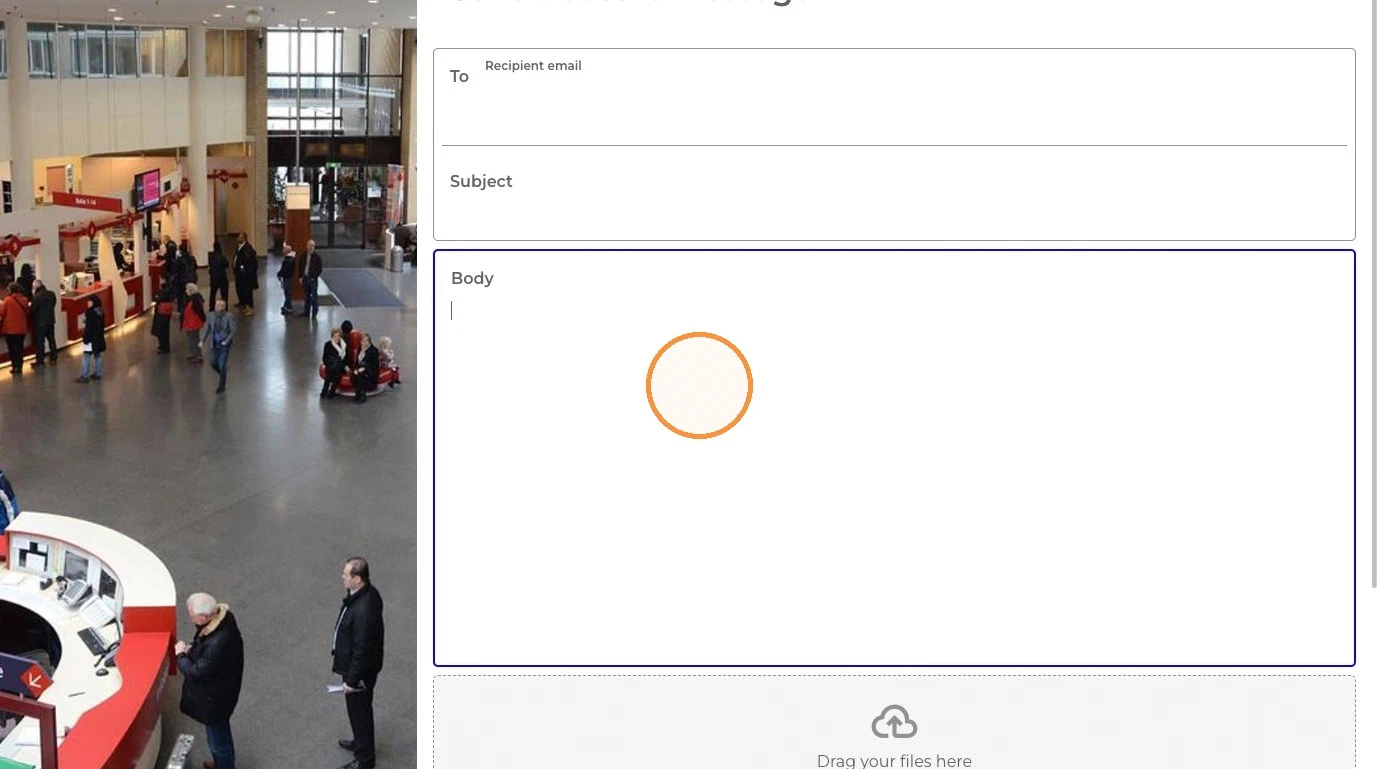
Enter the recipient’s email address. You can add multiple recipients.
Add a subject and your message text.
Attach files. There is practically no size limit for files sent with FileCap.
Some file types may be blocked for security reasons. If you add one, a Files forbidden dialog appears: “The following files are not allowed for security reasons”, followed by the file names. Click Upload without these files to continue without them, or Cancel to stop.
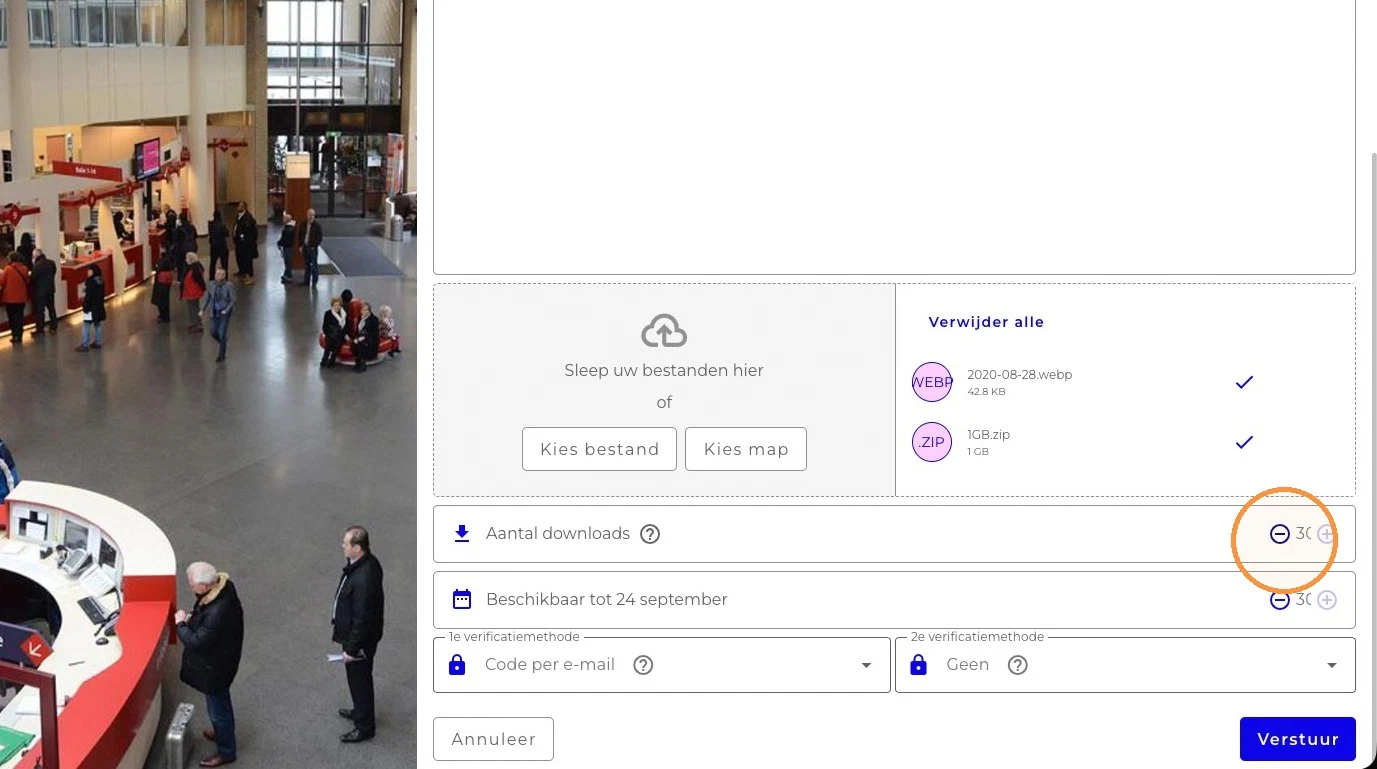
Check the limits for your message:
- Expires on: the date until which the message is available. After this date the message is gone and can no longer be opened.
- Max downloads per file: how many times each file may be downloaded. This limit applies to each file separately. It is only shown when you have attached files.
Your organization may lock these values. You then see the value with a help icon instead of the plus and minus buttons, for example “This message will automatically expire on [date]. This cannot be adjusted.”
Choose the verification method your recipients must use to open the message. Your organization decides which methods are available and which one is selected by default. The possible methods are:
- Code by email: each recipient receives a verification code by email when opening the message.
- SMS: each recipient receives a verification code by text message. Enter a mobile number for each recipient. You also need to enter your own mobile number, if it is not known yet. Until all numbers are filled in, the portal shows “Hint: SMS verification requires a mobile number for each recipient and for yourself. Fill in the missing numbers above.”
- Password: you choose a password and share it with your recipients yourself.
- Company password: a password defined by your FileCap administrator, used when you exchange messages with a company on a regular basis.
- None: no verification. Only use this for information that is not sensitive. The portal warns: “Selecting this option removes all security features and should only be used when sending non-sensitive information.”
Your organization may also offer a 2nd verification method for extra security. If a second method is required, you can only send the message when both methods are set to something other than None.
Click Send. Your recipients receive an email with a secure link to your message.
If your organization has enabled it, you also receive a confirmation email of your sent message, and notifications when a recipient reads the message or downloads files.
Recalling a message#
You can recall a message after sending it. Recalling is irreversible: the message and files are no longer accessible to anyone, even if a recipient has already opened the message.
- Right after sending, click Recall on the confirmation page.
- Or, if your organization sends you a confirmation email for sent messages, click Recall message in that email.
On the Recall message page, check the recipients and files, and click Recall to confirm.